How to Download an Instagram Reel with Grabfy: A Walkthrough for Mobile and Desktop
How to Download an Instagram Reel on Mobile and Desktop
Introduction to Downloading Instagram Reels
Instagram Reels are short-form vertical videos covering everything from entertainment and recipes to product demonstrations and detailed tutorials. When you find a Reel you want to revisit later, saving a copy to your device can be useful for offline viewing, personal reference, or organizing content you have permission to keep.
Instagram provides built-in options for saving Reels within the app, and eligible public Reels may also have a native download option. However, availability depends on the creator's settings and the Reel itself. Saving a Reel inside Instagram is different from downloading a video file that you can access through your device's storage.
For publicly accessible Reels, a browser-based downloader provides another option. The basic process involves copying the Reel URL, processing it through the downloader, and saving the available video file. This walkthrough explains how to complete that process on desktop, iPhone, and Android while managing downloaded files responsibly.
How to Download an Instagram Reel with Grabfy
Learning how to download an Instagram Reel is straightforward once you know where to find the Reel's URL. The workflow is similar across computers and mobile devices, so you do not need a completely different process for each platform.
Step 1: Copy the Instagram Reel Link
Open Instagram and navigate to the Reel you want to save. You might find it through the Reels feed, Explore, a creator's profile, or a Reel someone has shared with you.
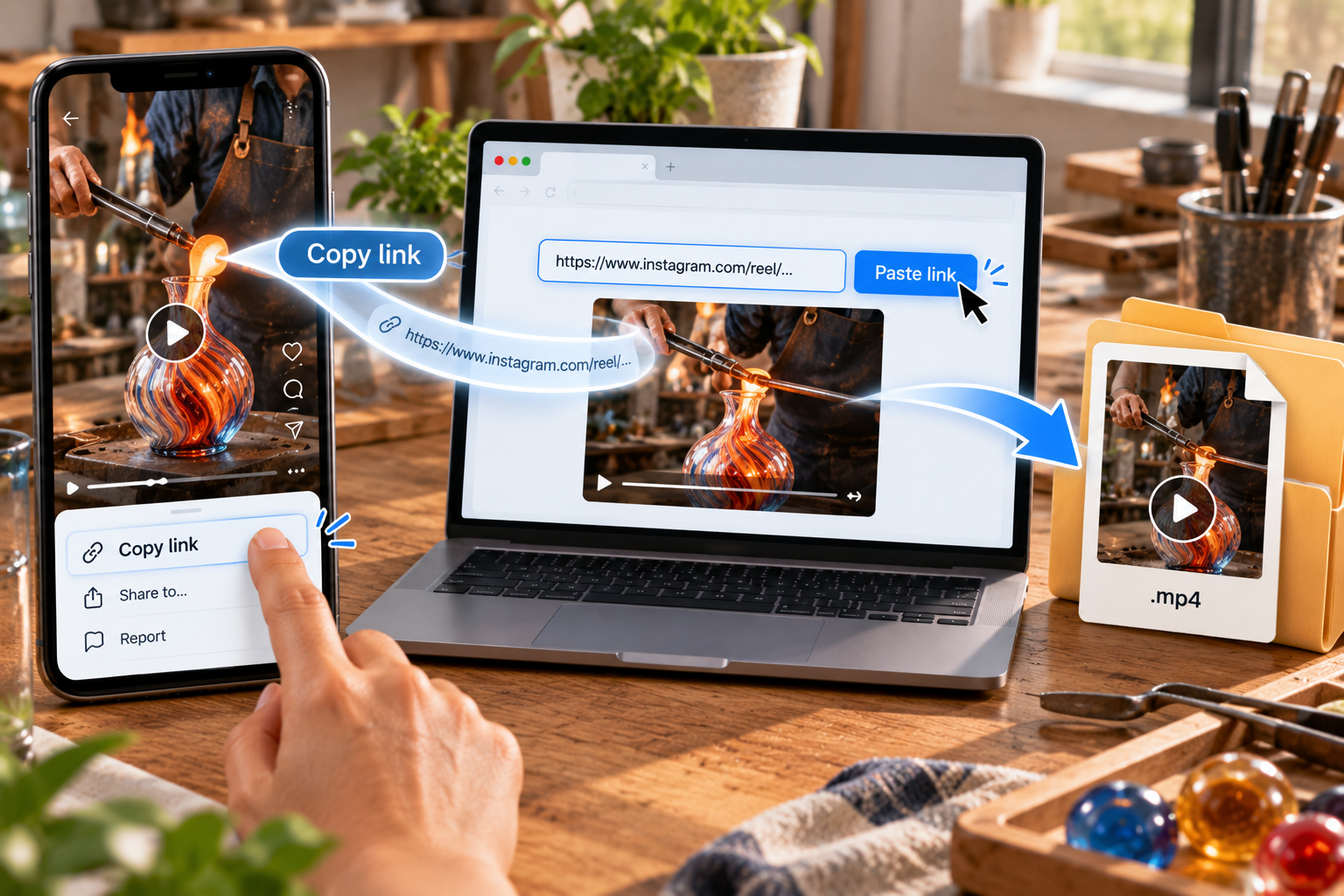
Use Instagram's sharing controls to locate the link option. Depending on your device and the current Instagram interface, tap the share icon, menu icon, or Copy link option. The Reel URL will then be copied to your clipboard.
Before using an external downloader, you can also check whether Instagram provides a native download option for that Reel. Native downloading is not available for every Reel because creators can control availability for eligible public content.
Step 2: Paste the Reel Link Into Grabfy
If you need a browser-based option for a supported public Reel, Grabfy provides a free, no-login Reel downloading workflow. Open the tool in your browser, paste the Instagram Reel URL into the input field, and start the available download process.
Because Grabfy operates through a browser, there is no need to install a separate downloader application just to process a public Reel URL. No account creation is needed to use this type of Reel downloader. Among browser-based downloader websites, this makes it a practical choice when you want a simple workflow for public links. This makes it particularly practical when you move between a desktop computer and a mobile device.
The workflow stays familiar across platforms: copy the Reel link from Instagram, switch to the browser, paste the URL, process it, and use the available option to save the video.
Step 3: Download the Available Reel Video
After the Reel has been processed, review the available download option and save the video to your device.
The quality of a downloaded Reel depends on the media Instagram makes available for that particular upload. A downloader cannot restore detail already lost through compression or improve the original source simply by downloading it.
For that reason, not every Reel will produce exactly the same resolution, file size, or visual quality. Older uploads, compressed videos, and reposted content may look different from an original upload.
Step 4: Find the Downloaded Reel
The location of the downloaded file depends on your device, operating system, browser, and download settings.
On Windows and Mac computers, browser downloads generally appear in the Downloads folder unless you have selected another location.
On an iPhone, browser downloads may initially appear in the Downloads section of the Files app. You can then use the available sharing or saving controls to move the video to Photos when appropriate.
On Android, downloaded files commonly appear in the Downloads folder and can usually be accessed through the device's file manager. Some phones may also display downloaded videos in a gallery or media application.
Downloading Instagram Reels on Mobile vs. Desktop
The main Grabfy workflow does not change significantly between devices. The biggest difference is where you copy the link and where the resulting video is stored.
On mobile, you generally start inside the Instagram app, copy the Reel link, and then switch to your browser. On desktop, you can open Instagram in a web browser, copy the Reel URL, and continue without switching devices.
For users who move between mobile and desktop, this consistent browser workflow can be especially convenient. Once you understand how to copy and process a public Reel link, you can follow essentially the same steps regardless of which device you are using, which is one practical way to get a local copy when a direct download option is available. If downloads are unavailable on a given device or Reel, screen recording can be used to capture the Reel instead.
Tips for Downloading Instagram Reels in the Best Available Quality
Use the Original Reel Whenever Possible
If you can choose between the creator's original Reel and a repost, use the original. Re-uploading can introduce additional compression, so repeatedly reposted versions may not look as clear as the initial upload.
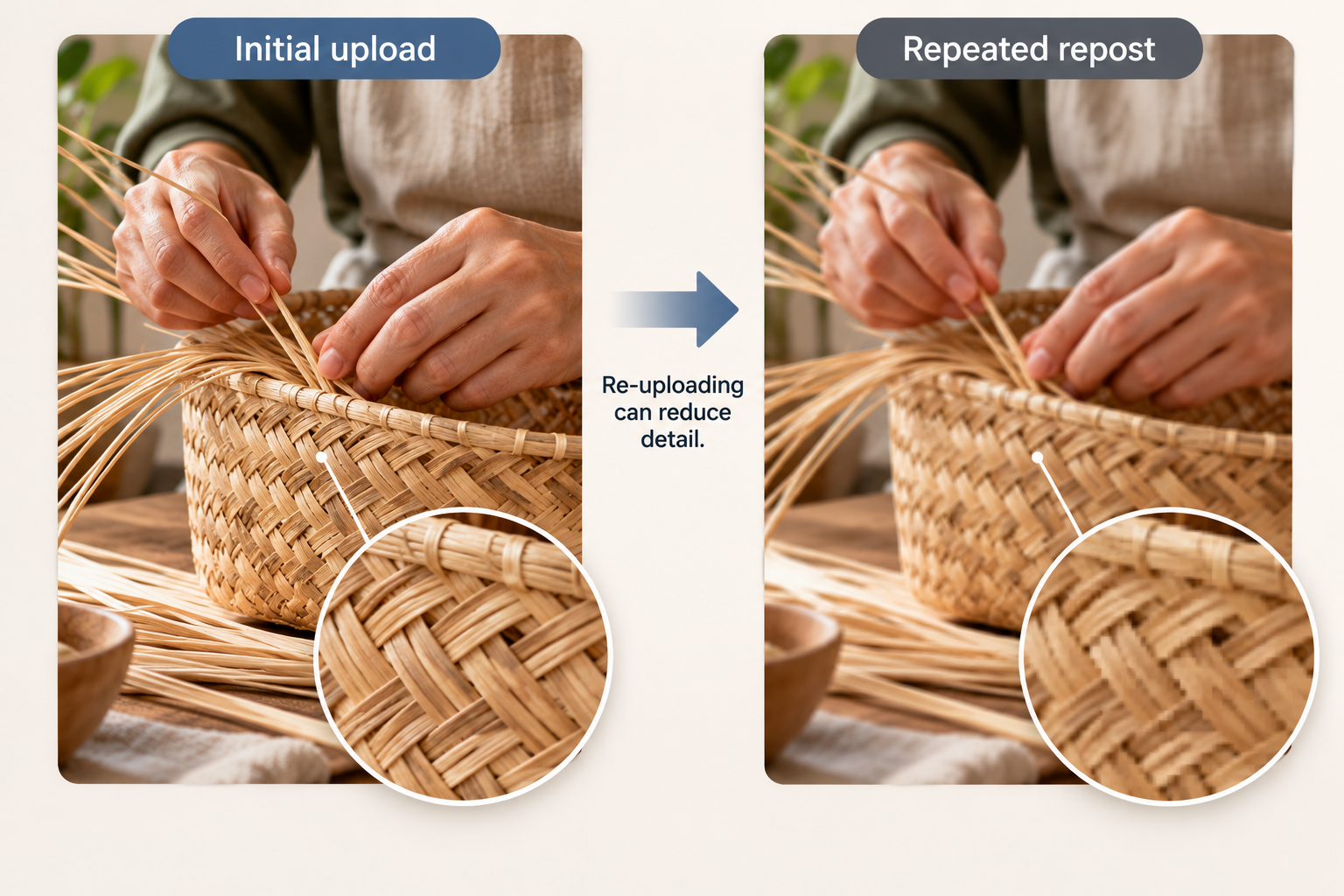
A downloader can only retrieve the media available from the source provided. It cannot recreate missing visual information.
Check the File Before Downloading Multiple Reels
If you are archiving several Reels for legitimate personal or professional purposes, download one first and play it on your device. Confirm that the video opens correctly and that the available audio and visual quality meet your needs.
This simple check can help identify browser, connection, or playback problems before you process a larger collection.
Use a Stable Internet Connection
Larger video files can take longer to transfer. An unstable connection may interrupt the process, so reliable Wi-Fi or mobile data can make downloading smoother.
If a download stops unexpectedly, process the Reel again rather than assuming an incomplete file is usable.
Keep Downloaded Reels Organized
A folder filled with unclear filenames quickly becomes difficult to manage. Rename downloaded Reels when appropriate and organize them according to their purpose.
You might separate your own archived content from reference material or organize files by project, creator, topic, or date. A simple naming system can make a larger collection easier to search later.
Using Downloaded Instagram Reels Responsibly
The technical ability to download a Reel and the right to reuse that Reel are different matters.
Downloading publicly accessible content for personal reference does not transfer ownership of the underlying video, music, images, or other creative material. If another person created the Reel, their intellectual property rights may continue to apply.
If you want to repost a downloaded Reel, include it in advertising, use it in client work, edit it into another video, or use it commercially, obtain the appropriate permission from the rights holder. Giving credit can be good practice, but attribution alone does not necessarily replace permission.
You should also avoid attempting to bypass privacy or access restrictions. Link-based downloaders are intended for publicly accessible content, not private accounts, Close Friends content, paid material, or other restricted media.
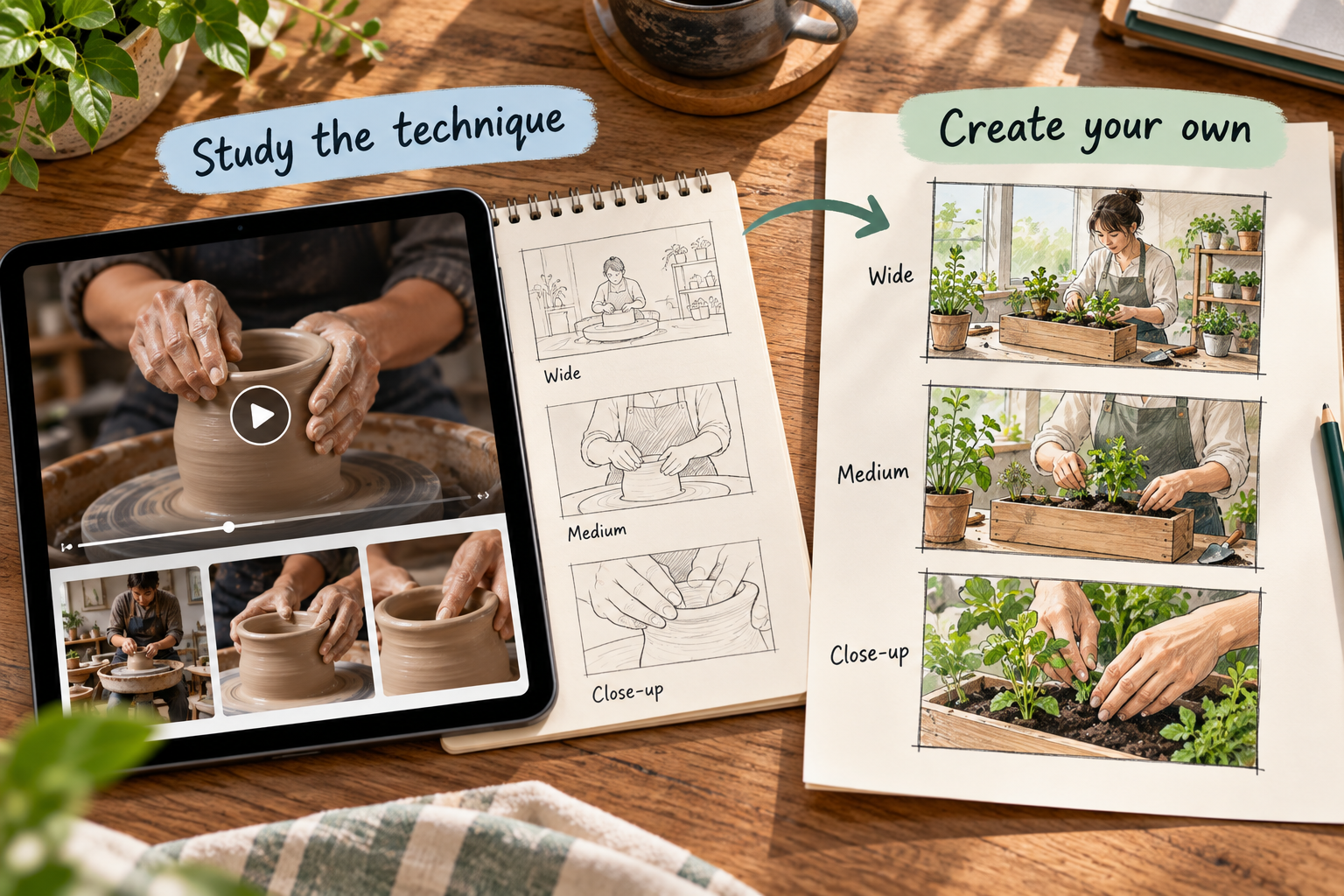
For inspiration or research, downloaded Reels can also serve as references. You might study editing styles, transitions, storytelling techniques, visual composition, motion-based art, or content formats and apply those ideas to your own original work rather than republishing someone else's content.
Browser-Based Downloaders vs. Other Instagram Reels-Saving Methods
There are several ways to keep track of Instagram Reels. Instagram's Save feature is useful when you simply want to revisit a Reel later. However, the Reel remains inside Instagram rather than becoming a local video file, so continued access depends on the post remaining available.
Native downloading can be useful when Instagram provides the option. Creators can control download availability for eligible public Reels, so this method will not be available in every situation.
Screen recording is another alternative when you are saving your own material or otherwise have permission. However, it can capture interface elements or notifications and may require trimming afterward.
A browser-based workflow serves a different purpose. It can be practical when you specifically need a local copy of supported public content without installing additional downloader software on your phone or computer.
Choosing the Right Download Method
The right method depends on what you need. If you only want to revisit a Reel later inside Instagram, the built-in Save feature may be enough. If Instagram provides a suitable native download option, that may also meet your needs.
If you need a local copy of supported public content and have the right to save it, the browser-based Grabfy workflow provides another practical option. The copy-and-paste process can be particularly convenient when you do not want to install additional software.
Regardless of the method, consider why you are downloading the Reel and what you plan to do with the resulting file.
Key Takeaways
Downloading an Instagram Reel generally starts with locating its shareable URL. For supported public content, you can copy the link, process it through a browser-based downloader, and save the available video file to your device.
The exact storage location varies between desktop computers, iPhones, and Android devices, while video quality depends primarily on the source media available. Use the original Reel when possible, maintain a stable connection, check downloaded files, and keep them organized.
Most importantly, downloading a Reel does not change who owns the content. Respect privacy restrictions and obtain permission before republishing or commercially using another creator's work.