How to Import and Export WooCommerce Products in Your Online Store
Managing products in a WooCommerce store can become challenging, especially when you have a large catalog. Whether you want to move products to another store, update product details in bulk, or create a backup of your product data, doing everything manually can take a lot of time.
That’s where product import and export come in handy. With WebToffee’s Product Import Export for WooCommerce plugin, you can easily import or export your WooCommerce products using simple files like CSV. This makes it much easier to update product information, transfer data, or manage your store more efficiently.
In this guide, we’ll show you how to import and export WooCommerce products using the free version of WebToffee’s Product Import Export for WooCommerce plugin in a few simple steps.
How to Import WooCommerce Products
Now that you have your product data ready, the first step is to import the products into your WooCommerce store. With the Product Import Export for WooCommerce plugin, the import process is simple and straightforward.
Before you begin, make sure your CSV file is UTF-8 encoded to avoid issues with product names, special characters, or descriptions during the import. Follow the steps below to import your products successfully.
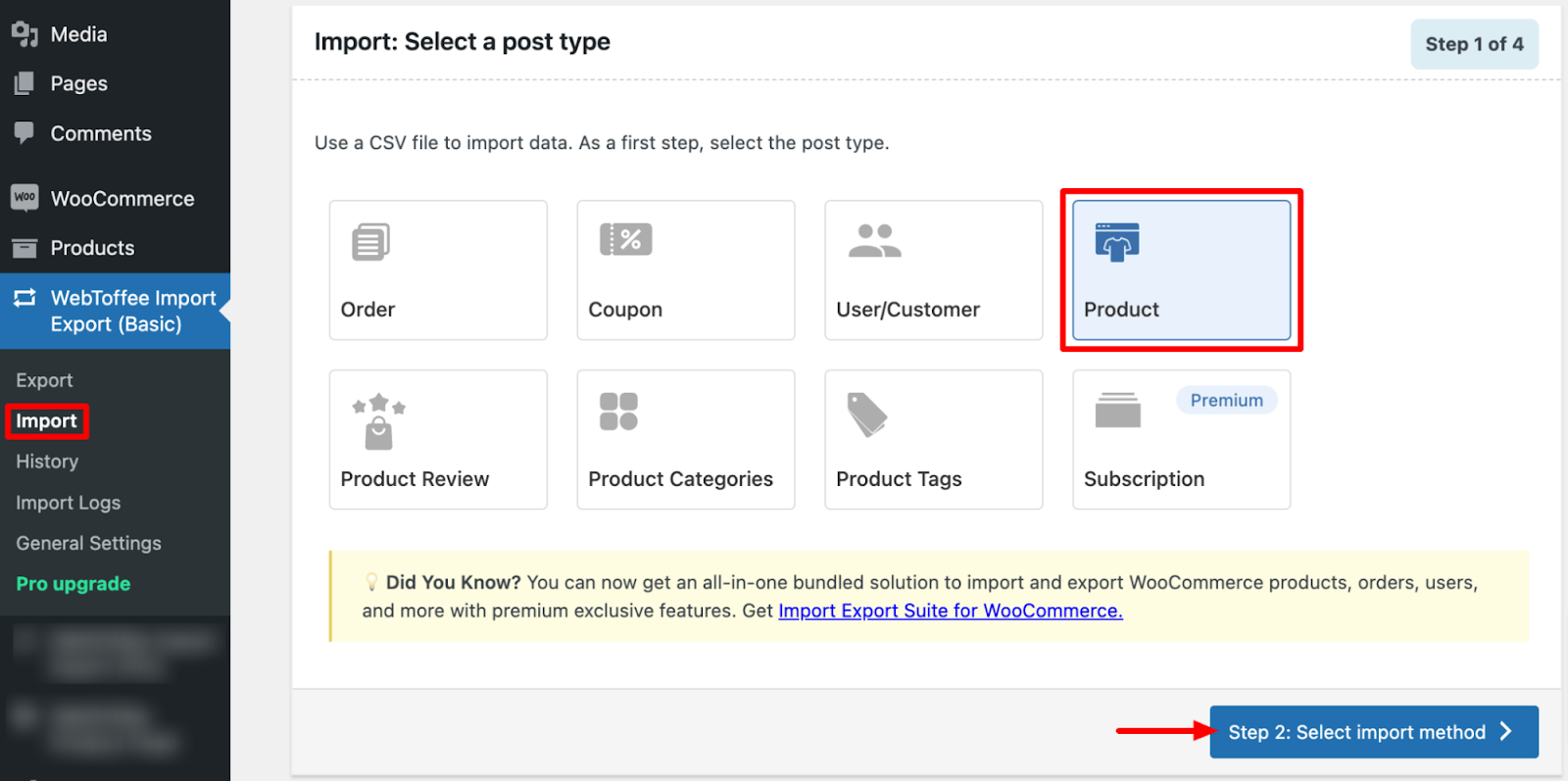
Step 1: Select Product Post Type for Import
From your WordPress dashboard:
Go to WebToffee Import Export (Basic) > Import.
Under Post Type, choose Product to indicate that you’re importing product data.
Click Select Import Method to continue.
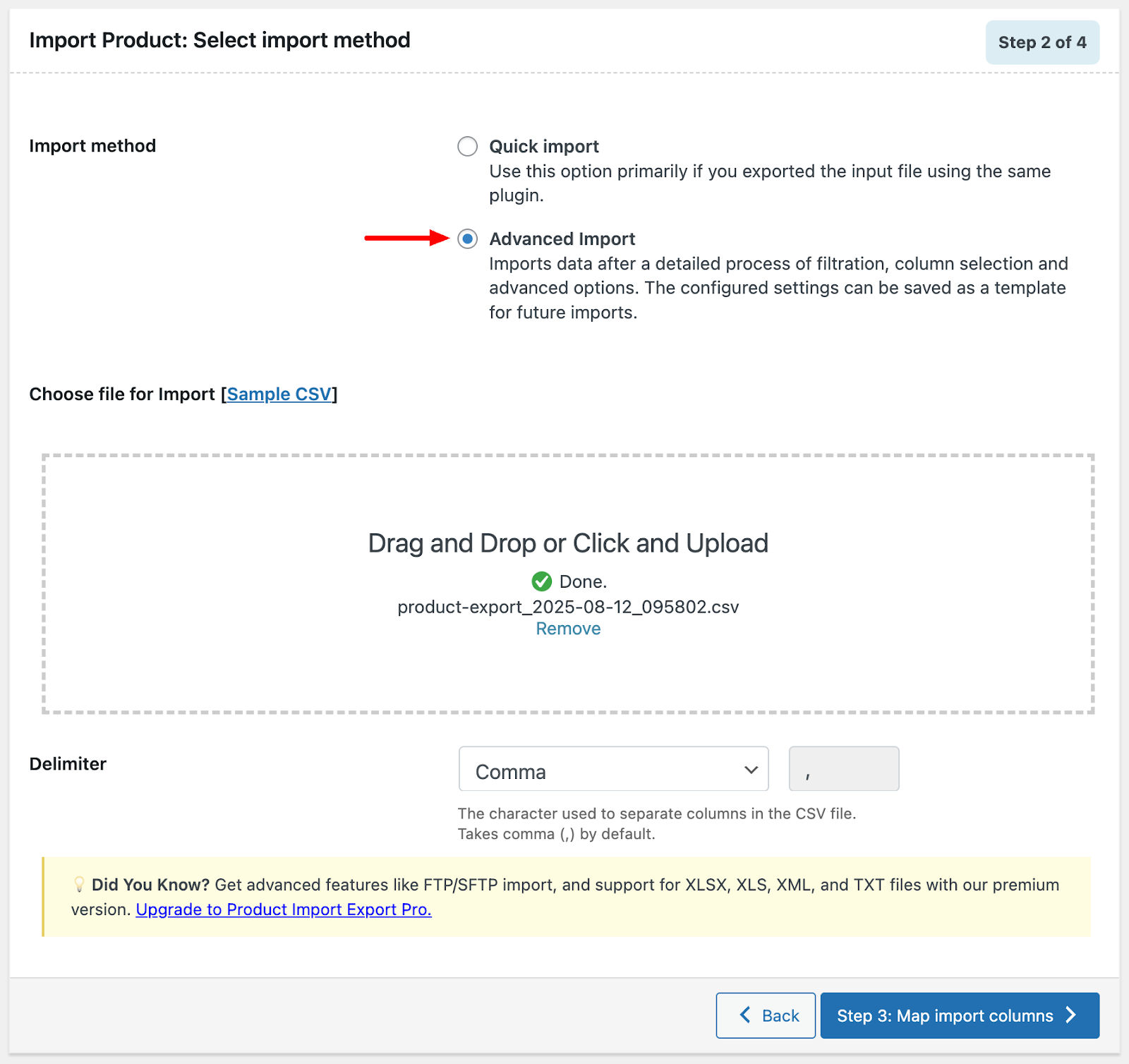
Step 2: Choose Import Method
You can import products into WooCommerce in two ways, depending on your needs.
Quick Import is the fastest option and works best when the CSV file was exported using the same plugin. Just upload the file and start the import for a quick transfer.
Advanced Import gives you more control over the process. You can upload your CSV file, select the appropriate delimiter (such as a comma or semicolon), and then map the import columns to ensure the fields match correctly before completing the import.
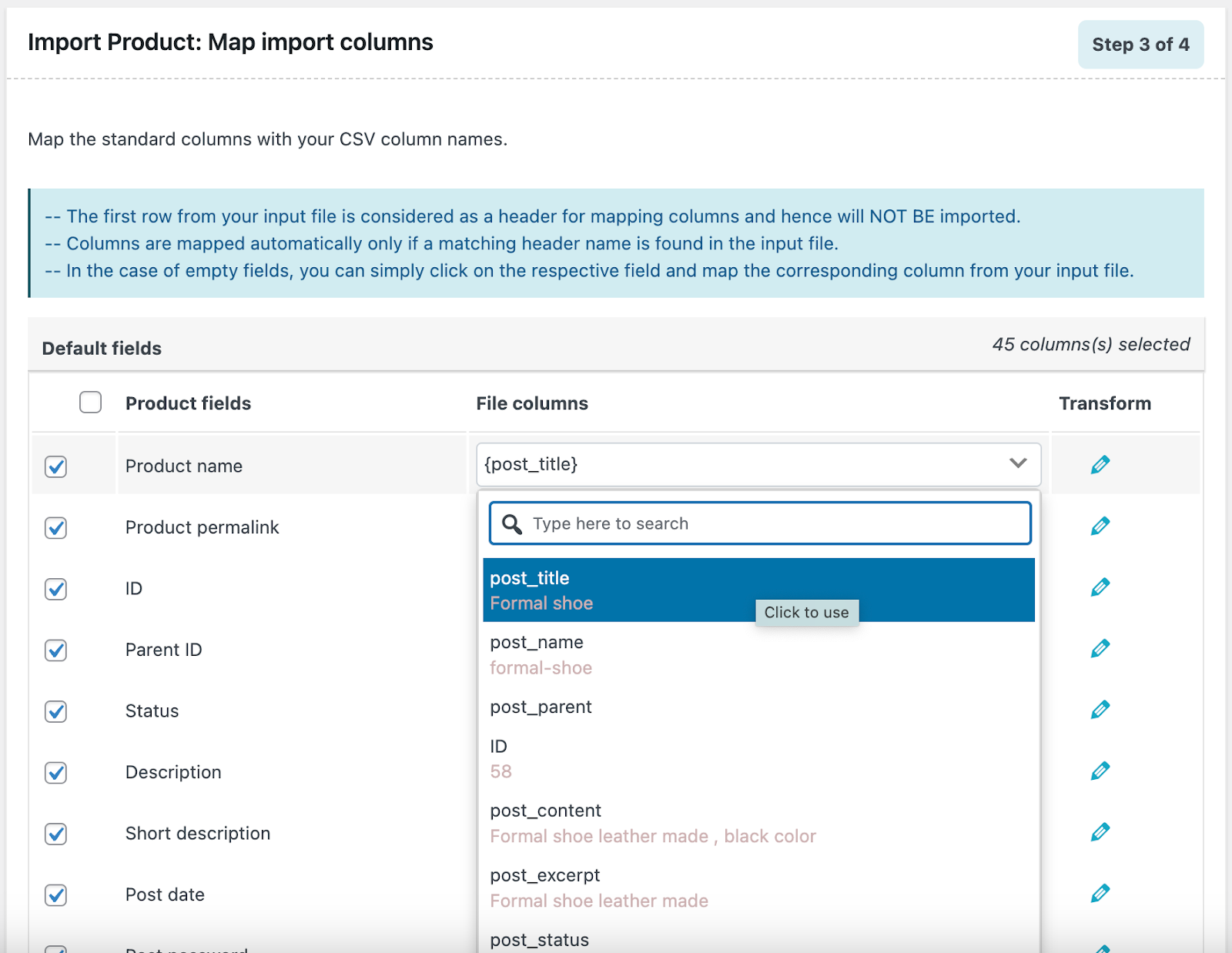
Step 3: Reorder Columns of the Products CSV File
To ensure a smooth import, make sure your CSV columns correctly match the WooCommerce product fields. The plugin will automatically map the columns if the CSV headers match the WooCommerce field names.
If any fields don’t match, you can use the drop-down menus to manually select the correct field for each column.
Once everything is mapped properly, scroll down and click Step 4: Advanced Options / Batch Import / Scheduling to continue to the next step.
Note: Double-check your mappings before proceeding. Accurate column alignment helps prevent import errors.
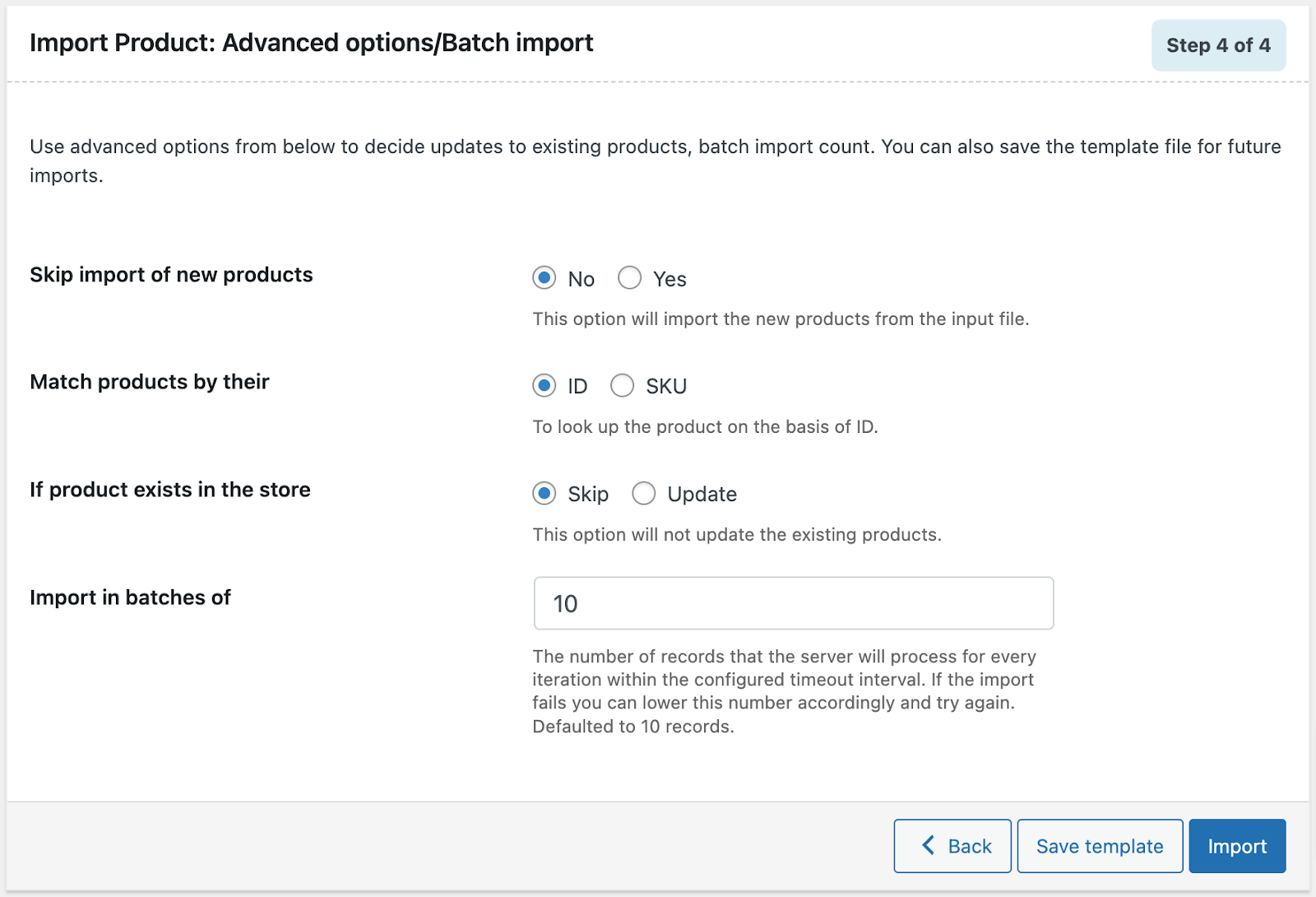
Step 4: Set Up Advanced Import Options
Before starting the import, you can adjust a few settings to control how the products are handled.
You can choose whether to import or skip new products, select ID or SKU for product matching, and decide whether existing products should be skipped or updated. You can also set the batch size for the import process to manage how many products are processed at a time.
Once everything is configured, click
Import to upload the products from your CSV file into your WooCommerce store.
Once the import is complete, all your WooCommerce products and their associated details will be transferred to your new store, helping ensure a smooth setup and accurate data migration.
How to Export WooCommerce Products
Follow the step-by-step guide below to export your WooCommerce products with ease.
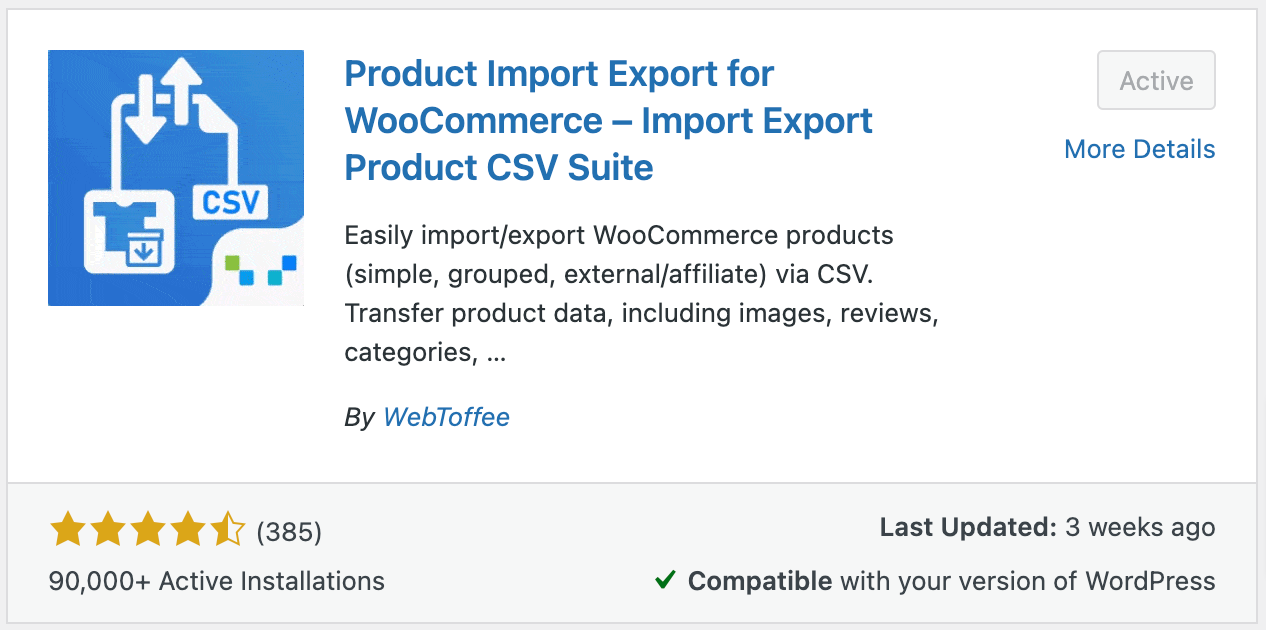
Step 1: Install WebToffee Product Import Export Plugin
From your WordPress dashboard
Go to Plugins > Add New Plugin.
Search for the “Product Import Export for WooCommerce” plugin.
Once found, Install and Activate the plugin.
Step 2: Select Product as Post Type
After you have installed the plugin:
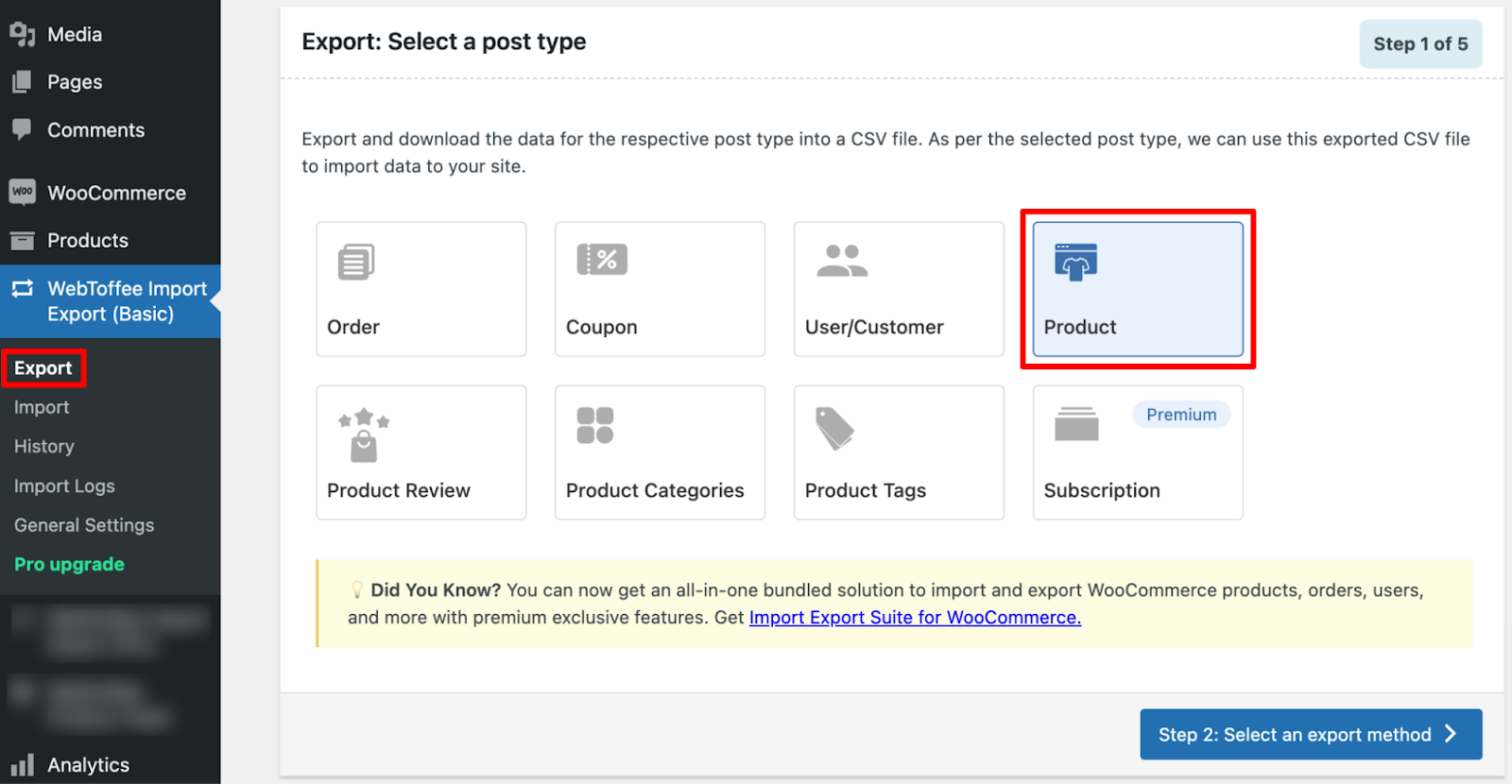
Go to WebToffee Import Export (Basic) > Export
Under Post Type, select Product to export your store’s products.
Click on the Select an export method button to proceed to the next step.
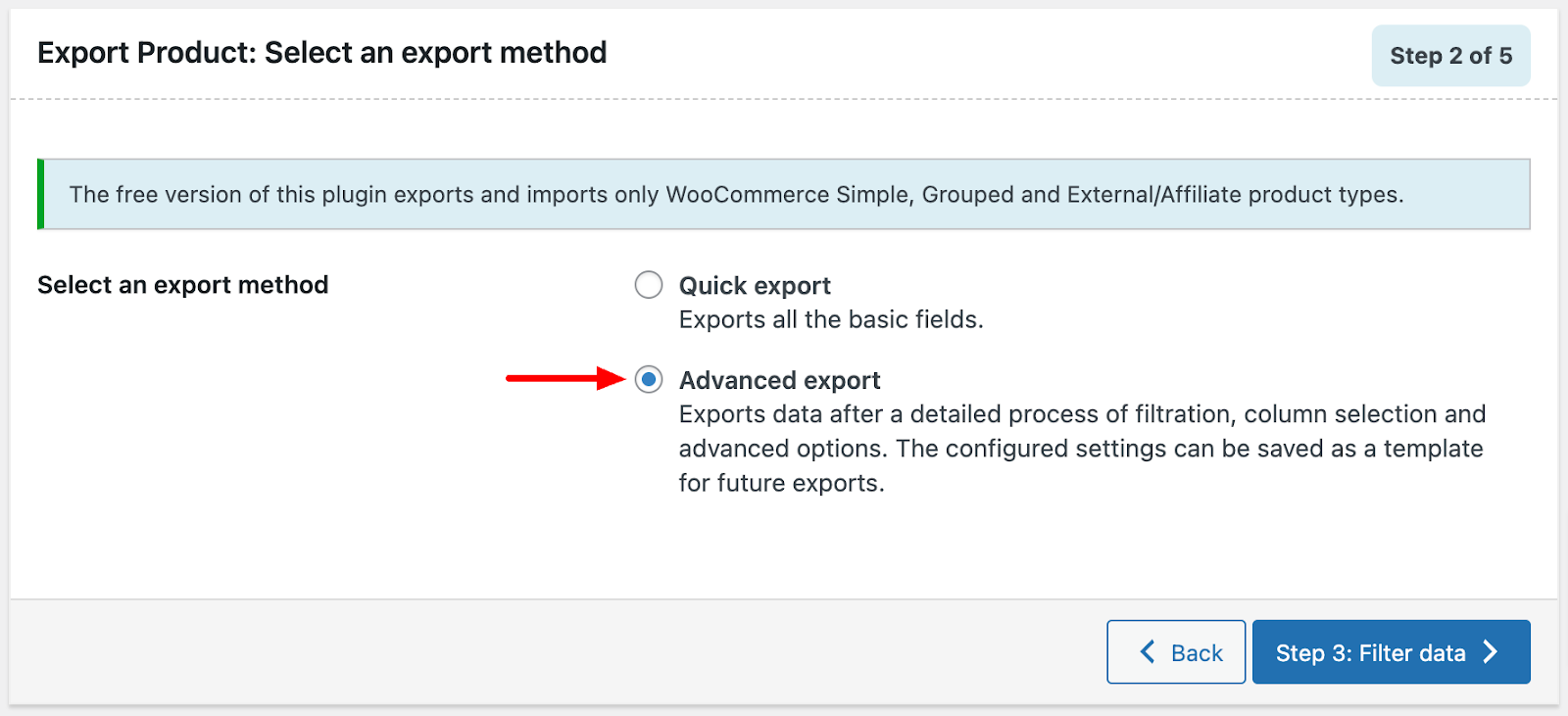
Step 3: Choose an Export Method
The plugin offers two flexible export options, so you can choose the level of control you need:
Quick Export: Ideal when you want a fast and simple export. It lets you export all products with essential details in a single click, making it perfect for quick backups or store migrations.
Advanced Export: Best when you need more control. You can select specific products, choose the fields to export, and apply filters to export exactly the data you need.
Choose the option that works best for your task, whether you need a full product export or a more targeted export for specific requirements.
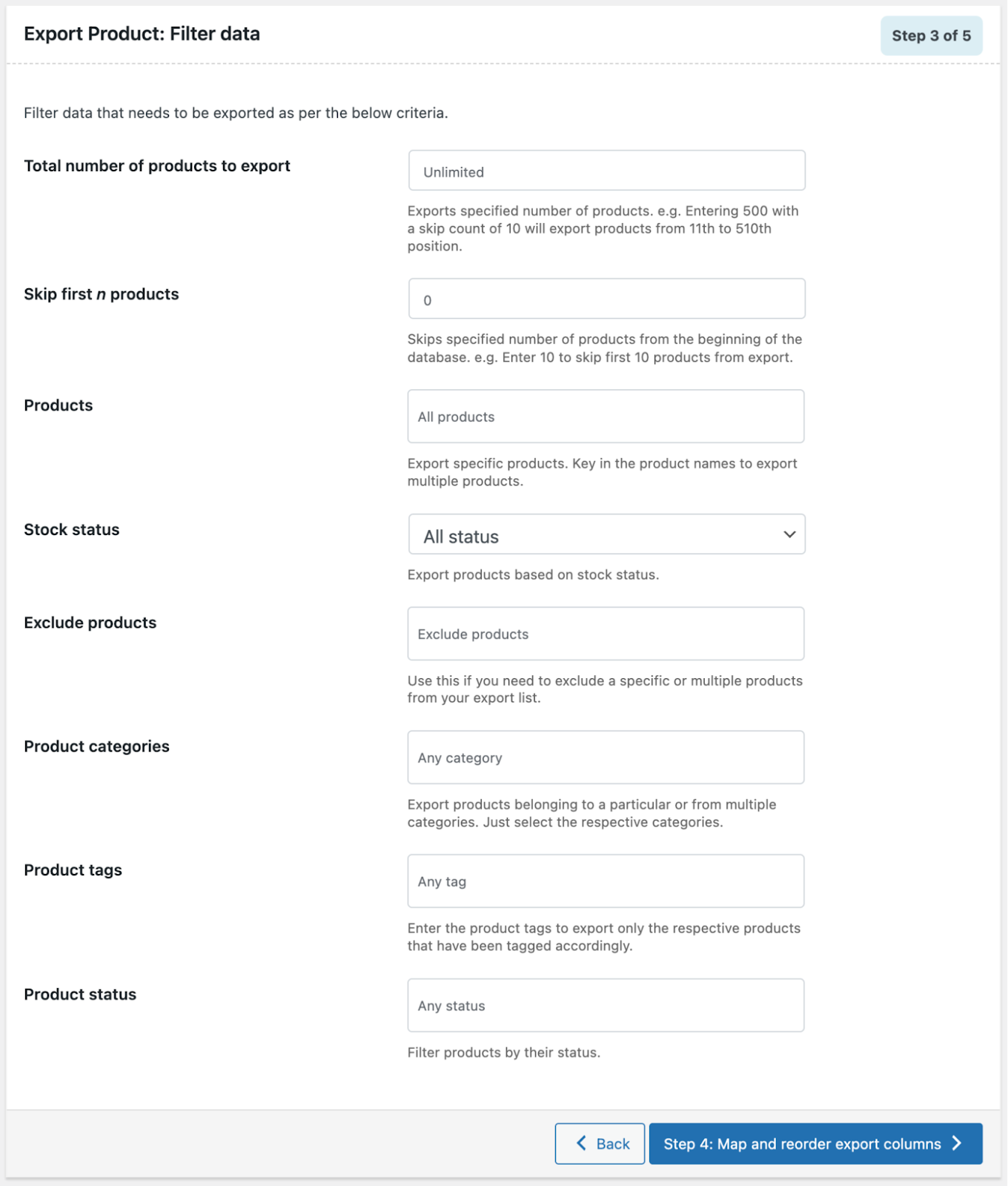
Step 4: Filter Export Data
Here, you can choose exactly which products to include in your export. Instead of exporting your entire catalog, you can use filters to narrow it down and export only the products you need.
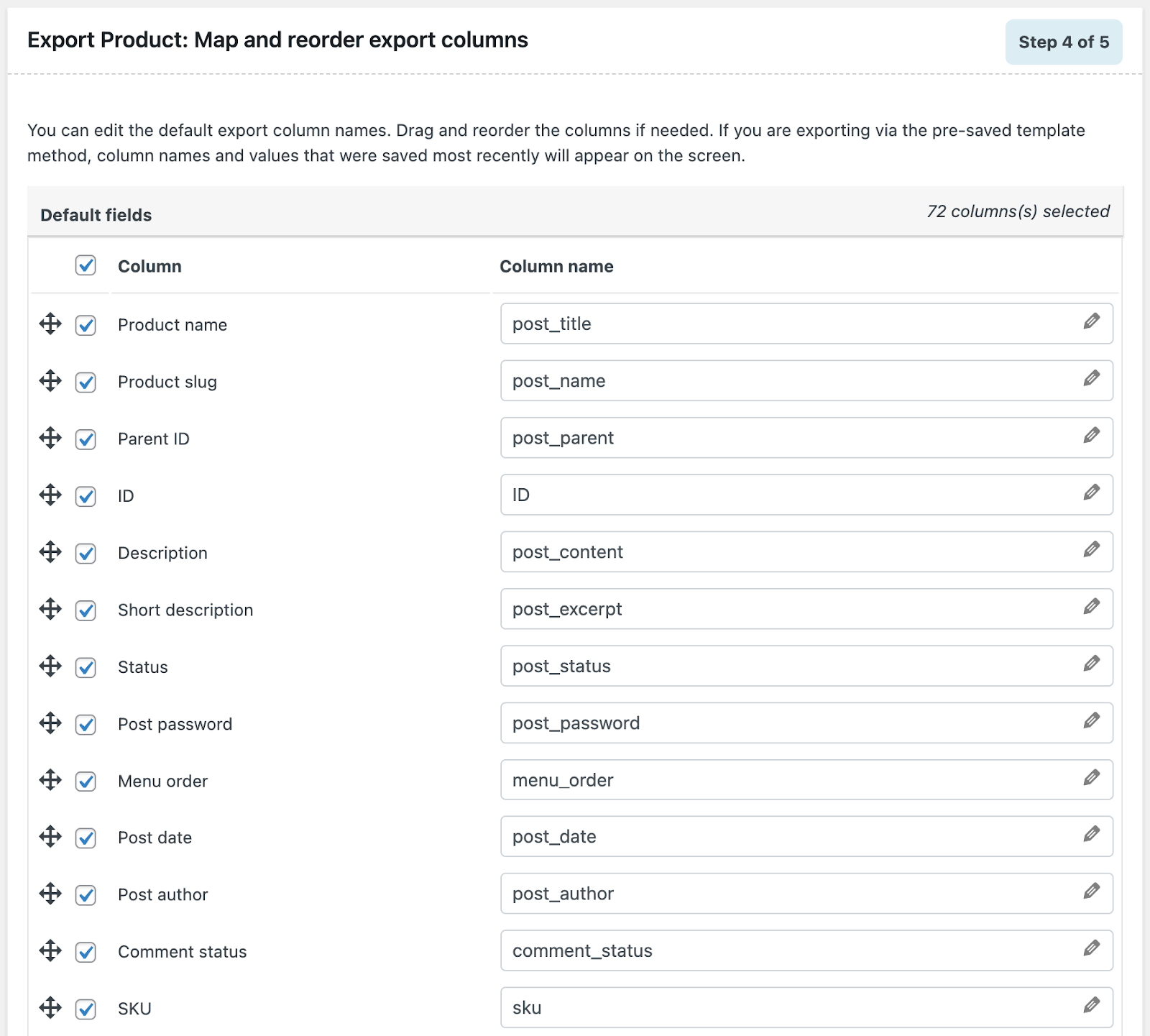
Step 5: Map & Reorder Columns
In this step, you can control how your product data appears in the exported CSV file. The plugin allows you to choose which fields to include, such as SKU, product name, price, stock, categories, and more. You can also rename column headers to match your preferred naming conventions, which is helpful when migrating data to another site or platform.
Additionally, the drag-and-drop interface makes it easy to reorder columns, creating a clean, well-organized export file.
Step 6: Export Products
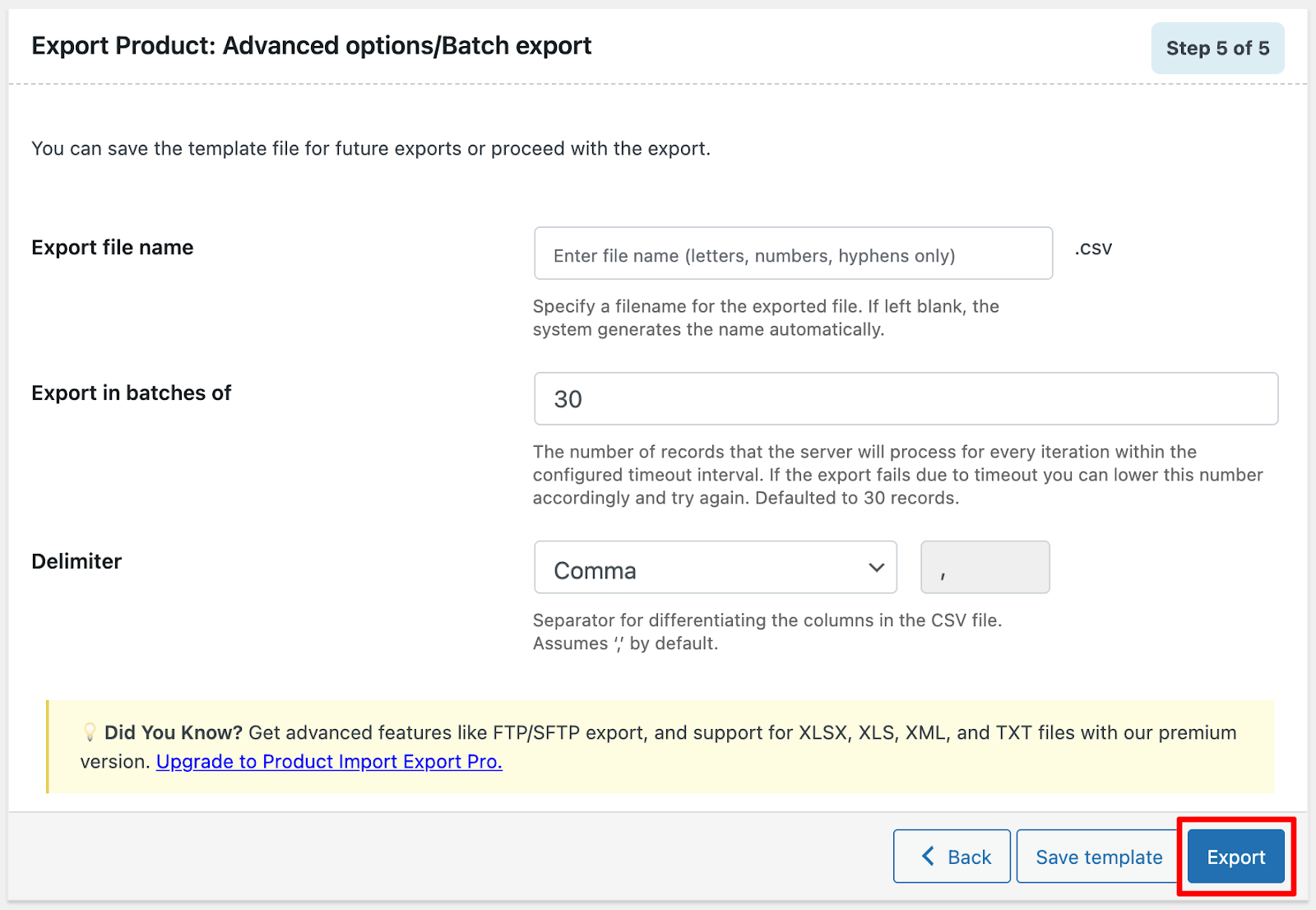
This is the final step in exporting your WooCommerce products. Here, you can review and adjust a few settings before generating the CSV file.
You can set a name for the export file so it’s easy to identify later, choose how many products should be processed per cycle (smaller batch sizes are helpful for large stores to avoid server timeouts), and select the delimiter for your CSV file, such as a comma or semicolon, to ensure it works with your target system.
Once everything is configured, click Export, and the plugin will generate the CSV file based on your settings, ready for download and use in another WooCommerce store.
Once the export process is complete, a pop-up window will appear with a Download File button. Click it to save the exported CSV file to your computer. The file will include only the products and data fields you selected, organized based on your filters, field mapping, and export settings.
You can use this CSV file to import the products into your new WooCommerce store.
For greater flexibility and control, you can upgrade to the premium version of the Product Import Export for WooCommerce plugin. It includes advanced features such as enhanced filtering options, scheduled imports and exports, and extended support for additional product types, making large-scale migrations and ongoing store management much easier.
Conclusion
Migrating WooCommerce products doesn’t have to be complicated. With the WebToffee Product Import Export plugin, you can easily move products between stores while saving time, reducing manual work, and minimizing errors.
By following the steps in this guide, you can complete your product migration smoothly and focus on what matters most: growing your store and delivering a great shopping experience to your customers.
We hope this guide helped make the process easier for you. If you have any questions or feedback, feel free to share them in the comments below.