Image to Video AI Guide: Create Photo to Video AI Clips with Filmora Desktop
Many digital creators want to turn a series of product photos into a dynamic promo but do not want to film new footage. They look for a good Image to Video AI tool to animate still images with smooth zooms and pans. Today, any still image can become a polished video with just a few clicks. This guide walks you through turning photos into engaging AI‑driven clips using Filmora’s timeline tools.
Part 1. Photo to Video AI Benefits: Why Creators Use Image-Based Video Tools
With the rise of visual storytelling, photo-to-video AI has become a key tool for modern creators. The following are the reasons why the technology has become so essential:
Turn Photos into Engaging Video Content: Image to video AI lets you convert a single photo or slideshow into a dynamic sequence with smooth transitions. This helps keep viewers engaged on platforms that favor moving visuals over still images.
Save Time and Avoid Reshooting: Instead of planning and capturing new scenes, creators reuse existing photos with animated effects. Image-to-video AI speeds up editing while reducing production costs and effort.
Enhance Storytelling with Motion Effects: Subtle zooms, pans, and parallax effects add depth and emotion to still images. These motion‑based enhancements make memories, products, or tutorials feel more cinematic and professional.
Boost Visual Appeal On Social Media: Platforms like Instagram, TikTok, and YouTube favor short, moving clips over static carousels. Image-to-video AI helps turn photos into scroll‑stopping videos without advanced skills.
Preserve and Modernize Old Photos: Aged or low‑resolution photos can look outdated in modern feeds. With image-to-video AI, users can restore, stabilize, and animate them for a fresh, polished look.
Part 2. Image to Video AI Software: Why Filmora Desktop Is a Strong Choice
Wondershare Filmora’s Image to Video AI feature turns static images into dynamic, AI‑powered clips with professional polish. Designed for beginners and creators alike, it uses advanced AI models to transform photos into smooth, cinematic videos that feel natural and engaging.
The video editing software for Mac and Windows intelligently analyzes each image and your input to generate realistic motion and coherent scene flow. Built‑in AI enhancement refines details, balances lighting, and boosts realism so every output looks clean and consistent. Users can adjust video style, resolution, duration, and effects in just a few clicks, without complex editing skills.
Key Features
Custom Resolution Control: Allows selection of output resolution, including HD and 4K, for sharp and platform-ready videos.
Flexible Video Duration Settings: Enables precise adjustment of clip length to fit creative goals or platform requirements.
Smart Scene Understanding: AI analyzes image content to generate natural, context-aware motion. This results in smoother transitions and more realistic video outputs.
Creative Template Library: Provides a collection of ready-made templates for quick and stylish video creation.
Start/End Frame Control: Lets users define specific starting and ending frames for smoother transitions and storytelling effects.
Real-Time Preview System: Displays instant previews of generated videos before export.
Steps for Converting an Image to a Video Using Filmora
Having learned about this tool in detail, let us have a look at the steps for how to use it:
Step 1. Begin with a New Filmora Project
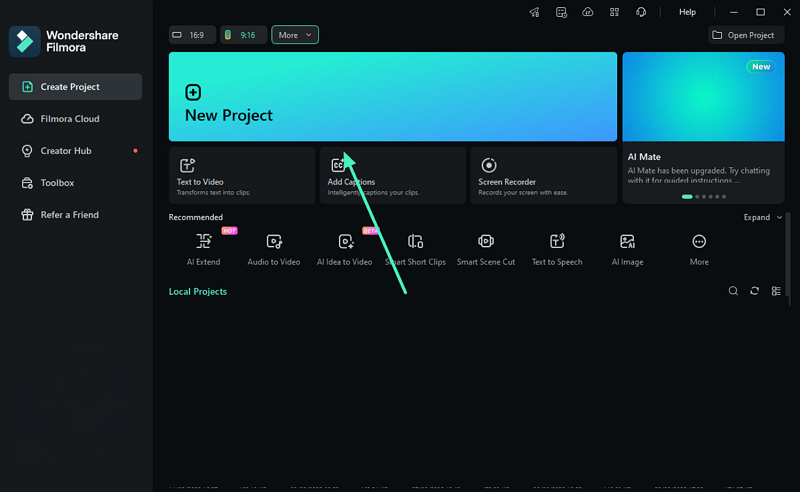
To start, launch Filmora on your device and click on the “New Project” option located on the homepage.
Step 2. Access Image to Video Feature
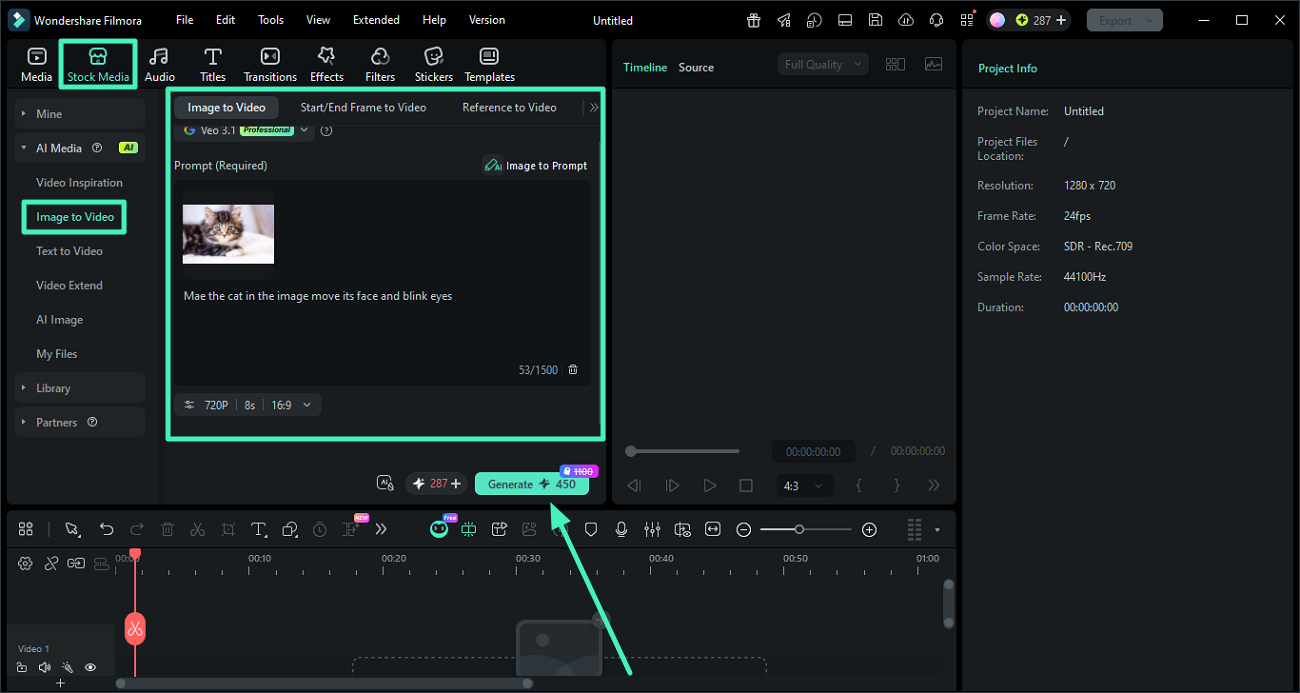
Next, locate the "Image To Video" option from the left under the "Stock media" menu. Select your preferred mode from the options provided and choose the AI model. Now, import the image and input the prompt in the designated field. Opt for the resolution, duration, and aspect ratio and hit the "Generate" button.
Step 3. Preview and Edit Results
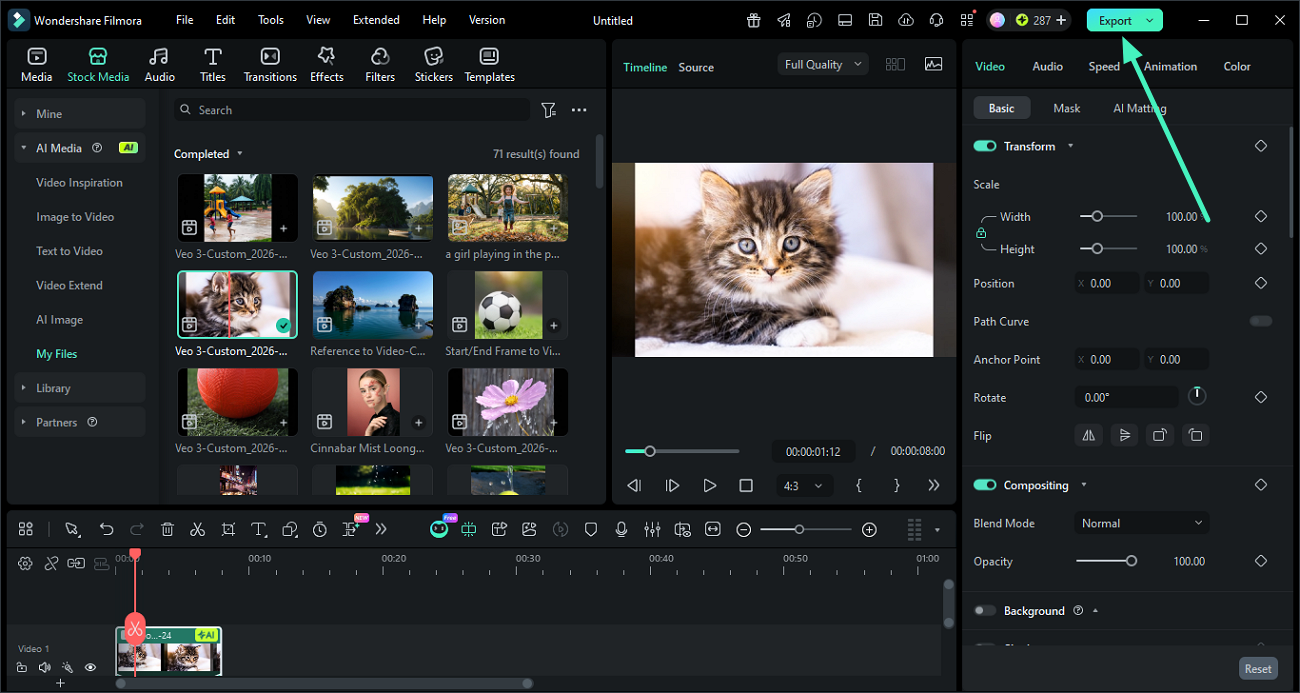
Once the video is generated, preview the results within the preview window. Make changes if required and hit the “Export” button to save the results.
Part 3. Image to Video AI Use Cases: Where Filmora Works Best
Filmora’s photo-to-video feature is especially useful across multiple real-world scenarios where speed, creativity, and visual storytelling matter. Here are some of the use cases of the feature:
Social Media Content Creation: Filmora helps creators turn static photos into eye‑catching videos for Instagram, TikTok, and YouTube Shorts. This boosts engagement by making posts more dynamic, scroll‑friendly, and visually polished.
Marketing and Advertising Campaigns: Brands can quickly convert product images into promotional videos using AI‑driven animation tools. This enhances ad performance with more interactive, attention‑grabbing visuals that stand out in feeds.
Personal Storytelling and Memories: Users can transform personal photos into emotional video stories with smooth transitions and cinematic effects. This turns birthdays, weddings, and travel memories into shareable, narrative‑driven clips.
Educational and Tutorial Content: Teachers and educators can turn diagrams, charts, and static images into clear explanatory videos. This simplifies complex topics, improves retention, and keeps students more engaged during lessons.
Conclusion
To sum it up, this article provided a detailed guide on Filmora’s image-to-video feature and how it turns still photos into dynamic, AI‑generated clips. It showed how smart tools add realistic motion, smooth transitions, and cinematic flair without complex editing. From creative templates to advanced models like Veo 3 and Sora 2, Filmora keeps the workflow fast and intuitive.
Note to readers: The information provided here is independently written and does not reflect the stance of any publishing organization.